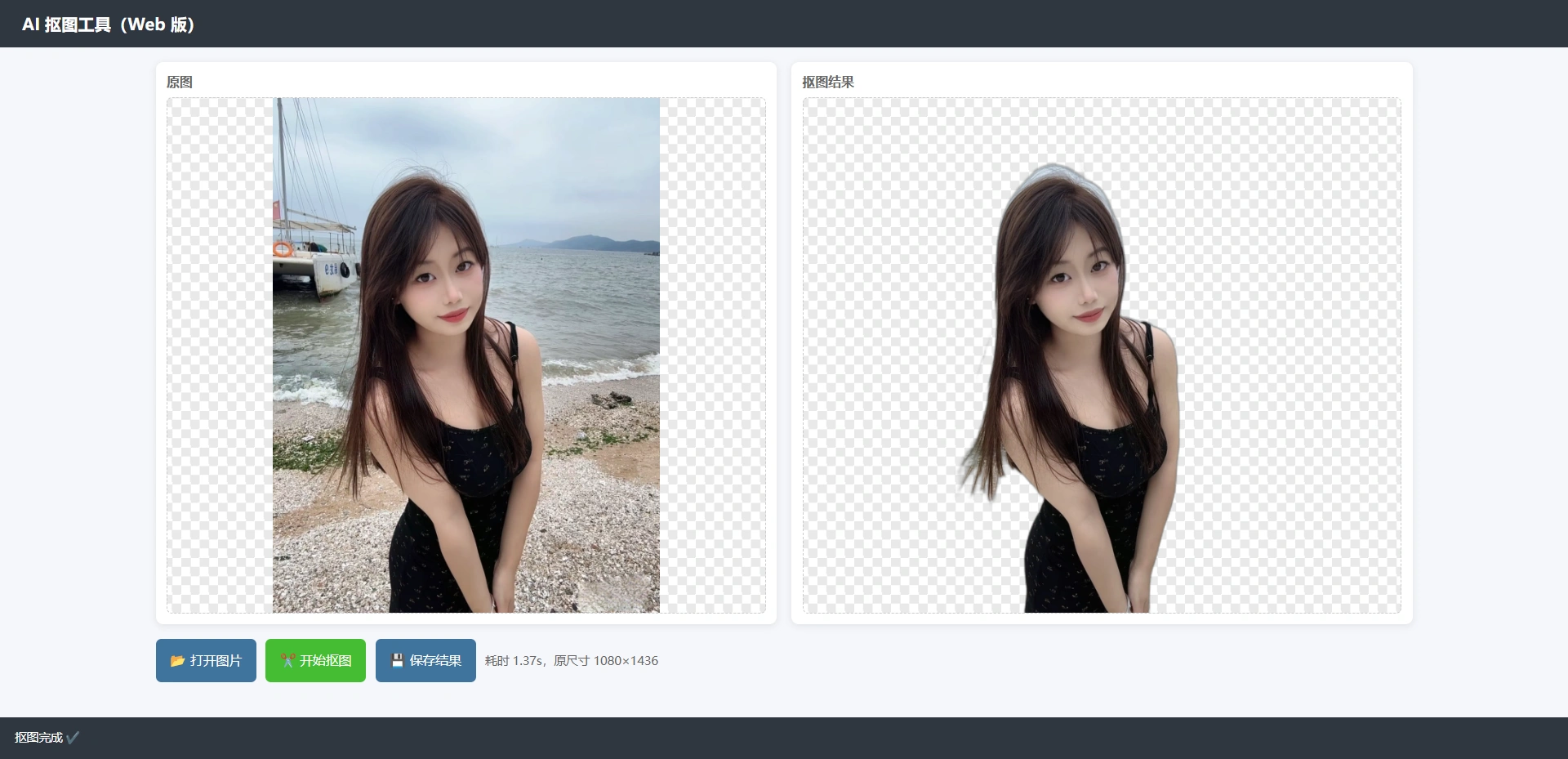
前文的抠图工具是用python写的,借助了AI模型,在本地打开可用。本文把抠图工具变成一个web应用。
flask
Flask 是一个基于 Python 的轻量级 Web 应用框架,设计初衷是提供简单易用的核心功能,同时通过扩展实现更复杂的功能。
Flask 的核心是 应用实例,通过创建 Flask 类的对象来初始化应用。路由系统是其重要组成部分,用于将 URL 映射到视图函数。视图函数处理请求并返回响应,支持多种 HTTP 方法(如 GET、POST)。此外,Flask 提供了强大的模板系统(基于 Jinja2),用于动态生成 HTML 页面。
一个简单的 Flask 应用示例:
1
2
3
4
5
6
7
| from flask import Flask
app = Flask(__name__)
@app.route("/")
def hello():
return "Hello, World!"
if __name__ == "__main__":
app.run(debug=True)
|
运行后,访问 http://127.0.0.1:5000/ 即可看到 “Hello, World!”。
输出:
1
2
3
4
5
6
7
8
9
10
| E:\desktop>python aaa.py
* Serving Flask app 'aaa'
* Debug mode: on
WARNING: This is a development server. Do not use it in a production deployment. Use a production WSGI server instead.
* Running on http://127.0.0.1:5000
Press CTRL+C to quit
* Restarting with stat
* Debugger is active!
* Debugger PIN: 813-027-404
127.0.0.1 - - [26/Sep/2026 16:33:57] "GET / HTTP/1.1" 200 -
|
cutout-web
目录结构:
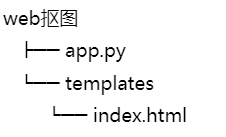
app.py:
1
2
3
4
5
6
7
8
9
10
11
12
13
14
15
16
17
18
19
20
21
22
23
24
25
26
27
28
29
30
31
32
33
34
35
36
37
38
39
40
41
42
43
44
45
46
47
48
49
50
51
52
53
54
55
56
57
58
59
60
61
62
63
64
65
66
67
68
69
70
71
72
73
| import io
import base64
import time
from flask import Flask, request, jsonify, render_template
from PIL import Image
from rembg import remove, new_session
app = Flask(__name__)
MODEL = "u2net"
MAX_SIDE = 1024
_session = None
def get_session():
global _session
if _session is None:
t0 = time.time()
_session = new_session(MODEL)
print(f"[调试] 模型加载耗时: {time.time() - t0:.2f}s")
return _session
@app.route("/")
def index():
return render_template("index.html")
@app.route("/api/remove", methods=["POST"])
def api_remove():
if "image" not in request.files:
return jsonify({"ok": False, "msg": "没有收到图片"}), 400
file = request.files["image"]
try:
t0 = time.time()
img = Image.open(file.stream).convert("RGBA")
orig_size = img.size
if max(img.size) > MAX_SIDE:
ratio = MAX_SIDE / max(img.size)
img = img.resize(
(int(img.width * ratio), int(img.height * ratio)),
Image.LANCZOS,
)
session = get_session()
result = remove(img, session=session)
if result.size != orig_size:
result = result.resize(orig_size, Image.LANCZOS)
buf = io.BytesIO()
result.save(buf, format="PNG")
b64 = base64.b64encode(buf.getvalue()).decode()
return jsonify({
"ok": True,
"image": f"data:image/png;base64,{b64}",
"elapsed": round(time.time() - t0, 2),
"size": orig_size,
})
except Exception as e:
import traceback
traceback.print_exc()
return jsonify({"ok": False, "msg": str(e)}), 500
if __name__ == "__main__":
app.run(host="0.0.0.0", port=5000, debug=False)
|
index.html:
1
2
3
4
5
6
7
8
9
10
11
12
13
14
15
16
17
18
19
20
21
22
23
24
25
26
27
28
29
30
31
32
33
34
35
36
37
38
39
40
41
42
43
44
45
46
47
48
49
50
51
52
53
54
55
56
57
58
59
60
61
62
63
64
65
66
67
68
69
70
71
72
73
74
75
76
77
78
79
80
81
82
83
84
85
86
87
88
89
90
91
92
93
94
95
96
97
98
99
100
101
102
103
104
105
106
107
108
109
110
111
112
113
114
115
116
117
118
119
120
121
122
123
124
125
126
127
128
129
130
131
132
133
134
135
136
137
138
139
140
141
142
143
144
145
146
147
148
149
150
151
152
153
154
155
156
157
158
159
160
161
162
163
164
165
166
167
| <!DOCTYPE html>
<html lang="zh-CN">
<head>
<meta charset="UTF-8">
<title>AI 抠图工具 Web 版</title>
<style>
* { box-sizing: border-box; }
body {
font-family: "Microsoft YaHei", sans-serif;
margin: 0; background: #f5f6fa; color: #333;
}
header {
background: #2f3640; color: #fff; padding: 14px 24px;
font-size: 18px; font-weight: bold;
}
.wrap {
display: flex; gap: 16px; padding: 16px;
max-width: 1400px; margin: 0 auto;
}
.panel {
flex: 1; background: #fff; border-radius: 8px;
box-shadow: 0 2px 8px rgba(0,0,0,.08);
padding: 12px; display: flex; flex-direction: column;
}
.panel h3 { margin: 0 0 8px; font-size: 14px; color: #666; }
.imgbox {
flex: 1; min-height: 420px;
border: 1px dashed #ccc; border-radius: 6px;
display: flex; align-items: center; justify-content: center;
background: repeating-conic-gradient(#e9e9e9 0% 25%, #fff 0% 50%) 50% / 20px 20px;
overflow: hidden;
}
.imgbox img { max-width: 100%; max-height: 560px; display: none; }
.imgbox .placeholder { color: #aaa; font-size: 14px; }
.controls {
display: flex; flex-wrap: wrap; gap: 10px;
margin-top: 12px; align-items: center;
}
button {
padding: 8px 16px; border: none; border-radius: 6px;
background: #40739e; color: #fff; cursor: pointer;
font-size: 14px; transition: .2s;
}
button:hover { background: #2f5a80; }
button:disabled { background: #aaa; cursor: not-allowed; }
button.primary { background: #44bd32; }
button.primary:hover { background: #379428; }
#status {
position: fixed; bottom: 0; left: 0; right: 0;
background: #2f3640; color: #fff; padding: 8px 16px;
font-size: 13px;
}
input[type=file] { display: none; }
label.filebtn {
padding: 8px 16px; border-radius: 6px; background: #40739e;
color: #fff; cursor: pointer; font-size: 14px;
}
label.filebtn:hover { background: #2f5a80; }
</style>
</head>
<body>
<header>AI 抠图工具(Web 版)</header>
<div class="wrap">
<div class="panel">
<h3>原图</h3>
<div class="imgbox" id="leftBox">
<span class="placeholder">尚未选择图片</span>
<img id="leftImg">
</div>
</div>
<div class="panel">
<h3>抠图结果</h3>
<div class="imgbox" id="rightBox">
<span class="placeholder">等待抠图</span>
<img id="rightImg">
</div>
</div>
</div>
<div class="controls" style="padding: 0 16px 60px; max-width:1400px; margin:0 auto;">
<label class="filebtn" for="fileInput">📂 打开图片</label>
<input type="file" id="fileInput" accept="image/*">
<button id="btnRemove" class="primary" disabled>✂️ 开始抠图</button>
<button id="btnSave" disabled>💾 保存结果</button>
<span id="info" style="font-size:13px;color:#666;"></span>
</div>
<div id="status">就绪</div>
<script>
const fileInput = document.getElementById('fileInput');
const leftImg = document.getElementById('leftImg');
const rightImg = document.getElementById('rightImg');
const leftBox = document.getElementById('leftBox');
const rightBox = document.getElementById('rightBox');
const btnRemove = document.getElementById('btnRemove');
const btnSave = document.getElementById('btnSave');
const statusBar = document.getElementById('status');
const info = document.getElementById('info');
let currentFile = null;
let resultDataUrl = null;
function setStatus(msg) { statusBar.textContent = msg; }
fileInput.addEventListener('change', e => {
const f = e.target.files[0];
if (!f) return;
currentFile = f;
resultDataUrl = null;
rightImg.style.display = 'none';
rightBox.querySelector('.placeholder')?.style.setProperty('display', 'block');
const url = URL.createObjectURL(f);
leftImg.src = url;
leftImg.style.display = 'block';
leftBox.querySelector('.placeholder').style.display = 'none';
btnRemove.disabled = false;
btnSave.disabled = true;
info.textContent = `文件:${f.name} (${(f.size/1024).toFixed(1)} KB)`;
setStatus('图片已加载,点击"开始抠图"');
});
btnRemove.addEventListener('click', async () => {
if (!currentFile) return;
btnRemove.disabled = true;
setStatus('正在抠图中,请稍候...');
info.textContent = '';
const formData = new FormData();
formData.append('image', currentFile);
try {
const res = await fetch('/api/remove', { method: 'POST', body: formData });
const data = await res.json();
if (!data.ok) throw new Error(data.msg || '抠图失败');
resultDataUrl = data.image;
rightImg.src = resultDataUrl;
rightImg.style.display = 'block';
rightBox.querySelector('.placeholder').style.display = 'none';
btnSave.disabled = false;
info.textContent = `耗时 ${data.elapsed}s,原尺寸 ${data.size[0]}×${data.size[1]}`;
setStatus('抠图完成 ✔');
} catch (err) {
setStatus('失败:' + err.message);
alert('抠图失败:' + err.message);
} finally {
btnRemove.disabled = false;
}
});
btnSave.addEventListener('click', () => {
if (!resultDataUrl) return;
const a = document.createElement('a');
a.href = resultDataUrl;
a.download = '抠图结果.png';
a.click();
setStatus('已保存');
});
</script>
</body>
</html>
|
安装依赖:
python -m pip install flask
rembg和u2net.onnx和前文一样也是必需的。
运行
输出:
1
2
3
4
5
6
7
8
| D:\web抠图>python app.py
* Serving Flask app 'app'
* Debug mode: off
WARNING: This is a development server. Do not use it in a production deployment. Use a production WSGI server instead.
* Running on all addresses (0.0.0.0)
* Running on http://127.0.0.1:5000
* Running on http://192.168.0.20:5000
Press CTRL+C to quit
|